
Why IPTV buffers on match day, and how to fix it
The match kicks off, the picture freezes, and the wheel starts spinning. In most homes the cause is not the server but the last few metres between your router and your TV. Here are the fixes that work, fastest first.
First, a 30-second diagnosis
Before you change anything, find out where the problem lives. Open the same channel on a second device, such as your phone on the same Wi-Fi.
- Phone plays smoothly, TV buffers: the problem is the TV, stick or its Wi-Fi signal. Start with fixes 1, 2 and 5.
- Both buffer on one channel only: that stream may have an issue. Try the channel’s other version (HD or FHD), then tell us.
- Everything buffers everywhere: your broadband is struggling. Start with fixes 1, 3 and 6.
1. Restart the router and the device, properly
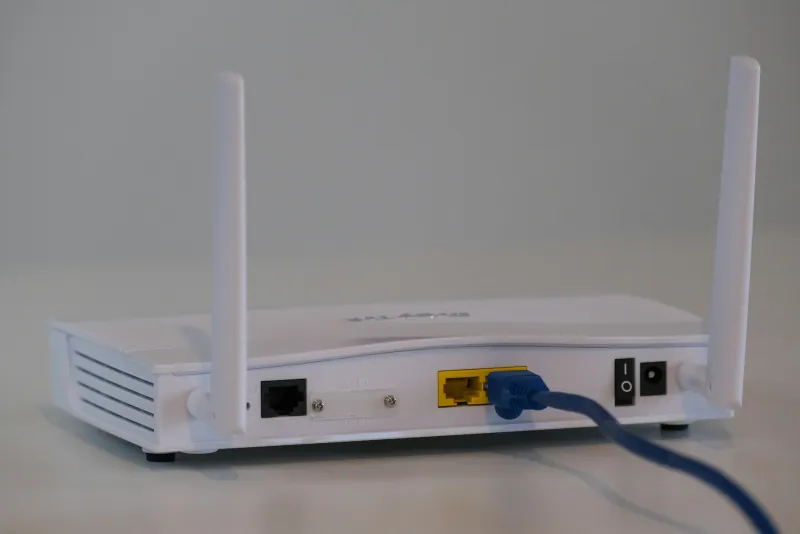
Switch the router off at the wall, wait 30 seconds, and turn it back on. Do the same with your Firestick or TV: unplug the power, not just the remote’s standby button. Routers and streaming sticks run for weeks without a break, and a cold restart clears memory leaks and reconnects you to the least busy channel your router can find. It takes two minutes and fixes more buffering than any other step.
2. Use a cable, or at least 5 GHz Wi-Fi
Wi-Fi loses speed through every wall, mirror and fish tank between the router and the TV. An Ethernet cable removes that problem entirely and gives you the steadiest picture for live sport. Most Smart TVs and Android boxes have an Ethernet port; a Firestick needs a small Ethernet adapter that plugs into its power socket.
If a cable is not practical, connect to your router’s 5 GHz network (often named with “5G” at the end). It is much faster than 2.4 GHz over short distances. If the TV is two rooms away, a mesh Wi-Fi point or a powerline adapter near the TV usually solves it.
3. Test the speed at the TV, not at the router
The speed on your broadband bill is what reaches the router. What matters is what reaches the screen. Run a speed test app on the TV or stick itself, ideally at the time you usually watch. As a rule of thumb you want about 10 Mbps for Full HD and 25 Mbps or more for 4K, for each screen watching at the same time, with some headroom on top.
Our guide to how much broadband you need for IPTV explains the numbers and how to test them properly.
4. Drop to the Full HD version for big games
A 4K stream needs more than twice the bandwidth of Full HD. If your speed test at the TV comes in under 25 Mbps, watch the Full HD version of the channel instead. On a typical living room TV, from the sofa, the difference is small. A picture that never stops beats a sharper one that freezes at every corner.
5. Clear the player’s cache and free up storage
Streaming sticks have very little storage, and a full stick slows down. On a Firestick go to Settings, Applications, Manage Installed Applications, choose the player and select Clear cache. On Android TV it is Settings, Apps, then the player and Clear cache. While you are there, uninstall apps you never use. Do this once a month and the player stays responsive.
6. Pause the heavy downloads at kick-off
A games console downloading an update, a laptop backing up photos, or a teenager uploading video can take most of your bandwidth without anyone noticing. Before a big match, pause console downloads and cloud backups. If your router has a priority or “QoS” setting, give the TV or stick priority.
Match-day routine. Restart the stick 15 minutes before kick-off, check nothing big is downloading, and open the channel early. It takes a minute and avoids most first-half freezes.
7. Switch off your VPN
A VPN routes everything through an extra server, sometimes hundreds of miles away. That adds delay and often cuts your speed by a third or more. If you have a VPN running on the router or the stick, turn it off and test the same channel again. You do not need one to use our service.
8. Try the player’s stream settings
Most IPTV players let you change the stream format (often shown as HLS or TS) and the buffer size. If one channel stutters while others are fine, switching the format often fixes it straight away. A slightly larger buffer adds a second or two of delay at the start, but gives the stream more room to recover from short drops.
Still buffering? Tell us
If you have tried a cable, restarted everything and still see freezing on several channels, the problem may be on our side, and we want to know. Message us on WhatsApp with the channel name, your device and the result of a speed test at the TV. A real person replies at any hour, and we check the stream while you wait.
Setting up a new device? Our Firestick guide and Smart TV guide include the best settings for smooth playback from day one.
Quick answers
Why does IPTV only buffer during big matches?
Home broadband networks are at their busiest during weekend kick-offs and weekday evenings, and everyone in your house tends to be online at the same time. A line that copes at noon can run short at 8pm, which is why a cable and a speed check at the TV matter most on match day.
Will a faster broadband package stop buffering?
Only if your line is genuinely too slow. Most UK fibre packages already give more than the 20 Mbps a Full HD stream needs. Weak Wi-Fi between the router and the TV is a far more common cause, and a cable fixes that for free.
Does a VPN cause IPTV buffering?
It can. A VPN sends your traffic through an extra server, often in another country, which adds delay and can cut your speed. If you use one, switch it off and test the same channel again.
Is buffering ever caused by the IPTV provider?
Sometimes. If every channel buffers on every device, even with a cable and a fast line, message us. We can see whether a stream has a fault and move you to a working one.